> ## Documentation Index
> Fetch the complete documentation index at: https://docs.raven.dev/llms.txt
> Use this file to discover all available pages before exploring further.
# Flutter Demo App
Check out our
[Flutter Demo App](https://github.com/ravenappdev/raven-flutter-demo)
This sample app shows how to use Raven Flutter SDK in your own Flutter app. The
Raven Flutter SDK allows you to:
* Manage (Create/Update) your users and their preferences on Raven.
* Update notification statuses to Raven for push notification tracking
### Raven Flutter SDK
You can visit our [SDK docs](https://github.com/ravenappdev/raven-flutter-sdk)
to setup the Flutter SDK in your app.
## How to run this sample app
### Step 1.
Run the following commands in the project root directory:
```bash theme={null}
# Install the CLI if not already done
dart pub global activate flutterfire_cli
# Run the configure command, select a Firebase project and platforms
flutterfire configure
```
Once configured, a `firebase_options.dart` file will be generated for you
containing all the options required for initialization. The
`DefaultFirebaseOptions.currentPlatform` is imported from our generated
`firebase_options.dart` file and is used for Firebase initialization in the
`main.dart` file.
```javascript theme={null}
void main() async {
await Firebase.initializeApp(options: DefaultFirebaseOptions.currentPlatform);
runApp(MyApp());
}
```
To run this app on iOS, please follow additional steps
[here](https://firebase.flutter.dev/docs/messaging/apple-integration/) to
provide permissions to receive notifications from Firebase cloud messaging on
iOS devices.
### Step 2.
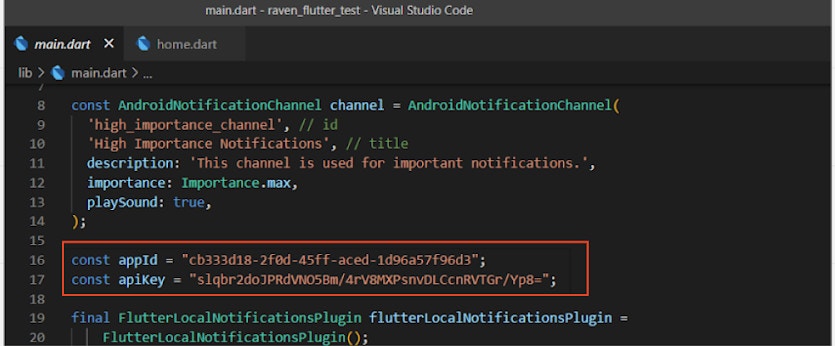
Replace `appId` and `apiKey` in the `main.dart` file with your own Raven App ID
and API Key which you can get from the Raven Console in the Settings tab.
 ### Step 3.
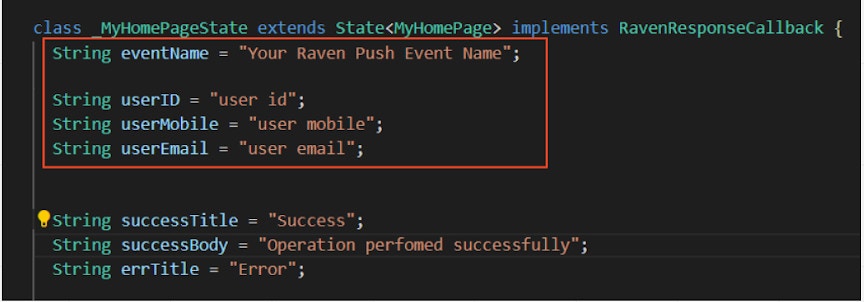
Change event name to your Raven push event name and user parameters to the
details of the corresponding user you want to register to the Raven app.
If you haven’t created a Raven Push event in the Raven console yet check our
docs [here](/push/client-sdk/flutter#step-4.-test).
### Step 3.
Change event name to your Raven push event name and user parameters to the
details of the corresponding user you want to register to the Raven app.
If you haven’t created a Raven Push event in the Raven console yet check our
docs [here](/push/client-sdk/flutter#step-4.-test).
 ### Step 4.
After completing the above steps, run the `“flutter run”` command to run this
sample app.
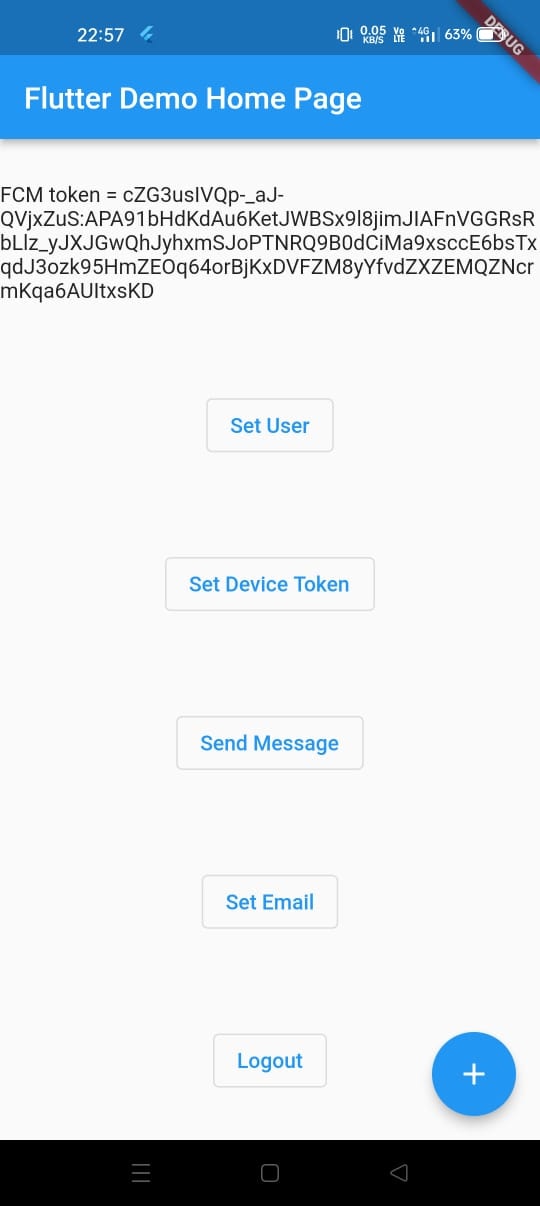
Once the app runs the following screen appears.
* Set User button creates/updates the user provided in the Raven app.
* Set Device Token button adds the device token to the previously created user.
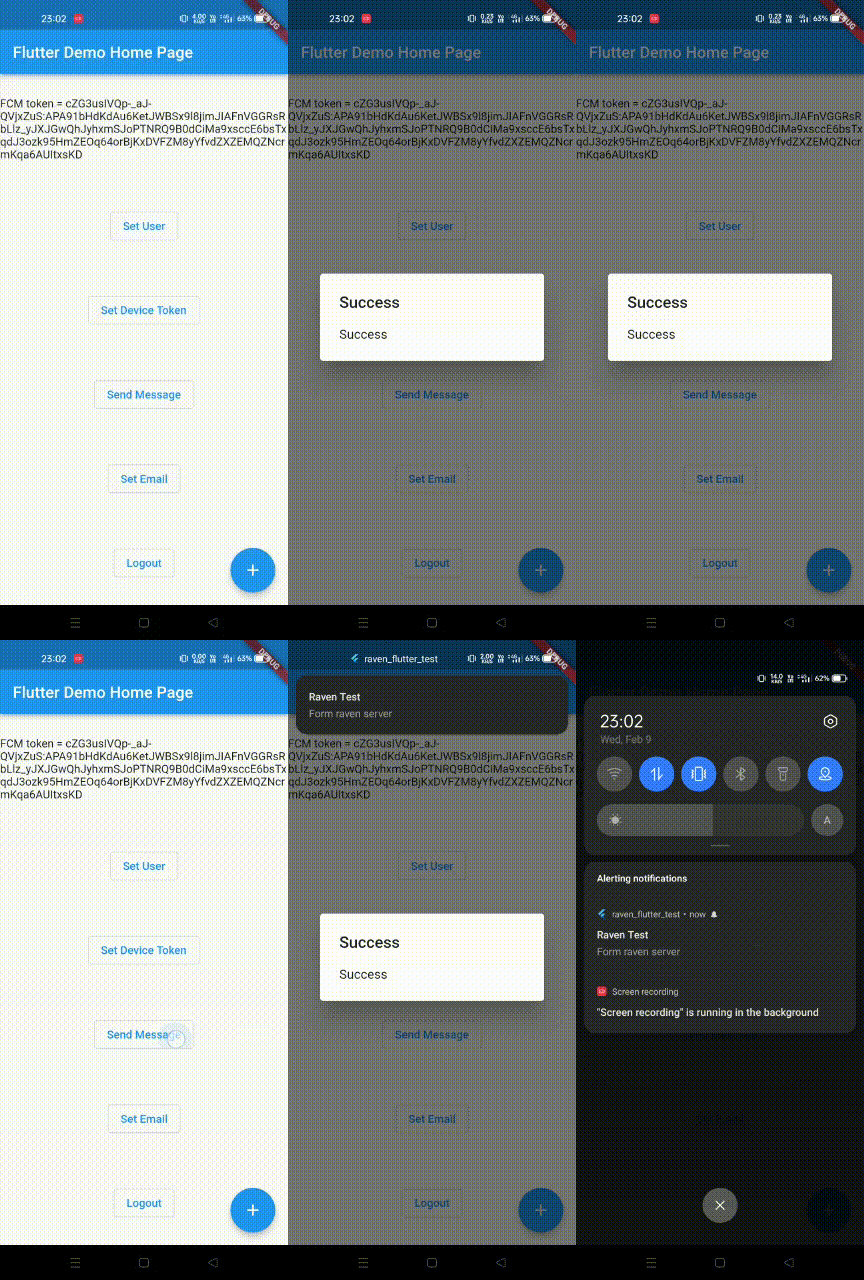
* Send Message button is a test method provided in the Raven Sdk to send a
notification to the devices of the registered user.
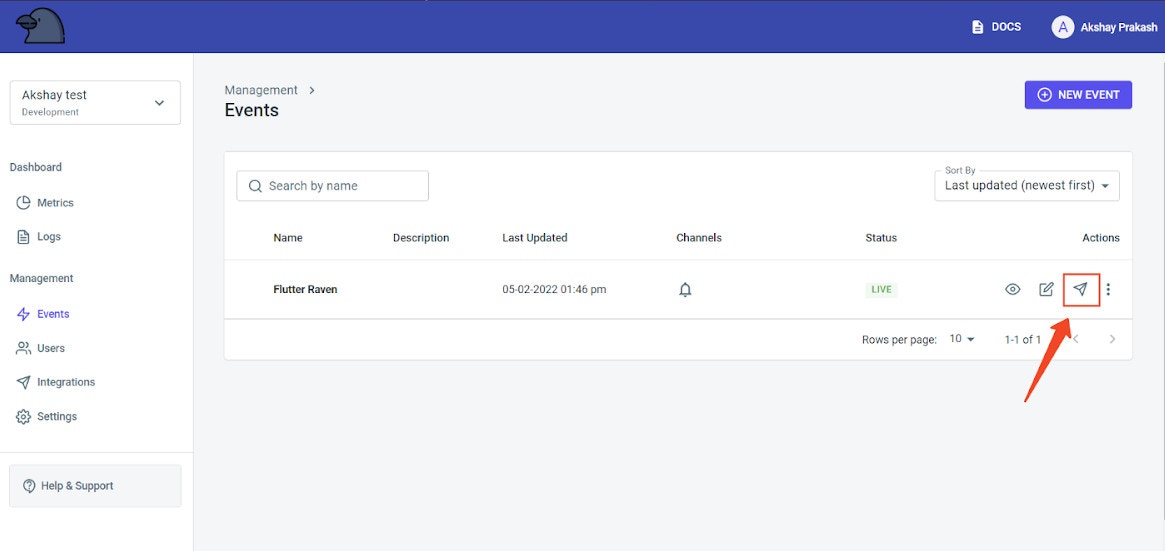
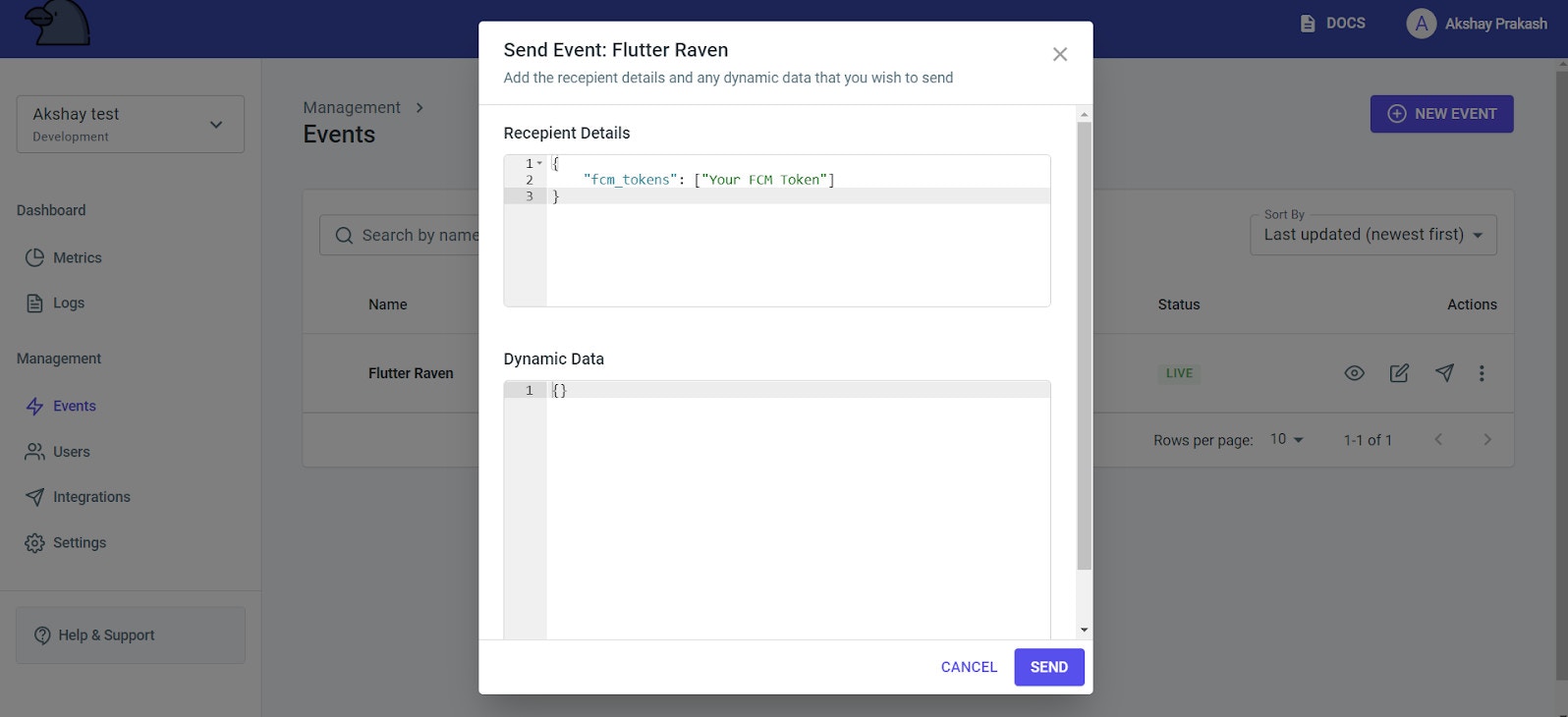
You can also directly send a notification to a device from the Raven console. Go
to your event and click the send button of your push event and then use the FCM
token of the device to send the event.
### Step 4.
After completing the above steps, run the `“flutter run”` command to run this
sample app.
Once the app runs the following screen appears.
* Set User button creates/updates the user provided in the Raven app.
* Set Device Token button adds the device token to the previously created user.
* Send Message button is a test method provided in the Raven Sdk to send a
notification to the devices of the registered user.
You can also directly send a notification to a device from the Raven console. Go
to your event and click the send button of your push event and then use the FCM
token of the device to send the event.