> ## Documentation Index
> Fetch the complete documentation index at: https://docs.raven.dev/llms.txt
> Use this file to discover all available pages before exploring further.
# Integration Rule
> If you have multiple integrations of the same channel, you can create rules that define how to deliver notifications.
For example, if you have two SMS integrations - Twilio and MessageBird, you may
have rules to
* Split traffic between the two
* Use one as fallback
* Condition based: If geography = 'EU' -> send using MessageBird, otherwise use
Twilio.
You can create such rules for a channel and select them when creating an Event.
Navigate to our Integration Rules section on the dashboard to start creating
rules. We will highlight a few common types of rules as examples in this doc.
Integration Rules work within a channel and not cross-channel. For example,
you can only define rules that decide how to use Twilio and MessageBird to
send an SMS. If you want to create a cross channel rule like: Send an Email if
SMS fails, then you should check our doc on adding channel fallbacks.
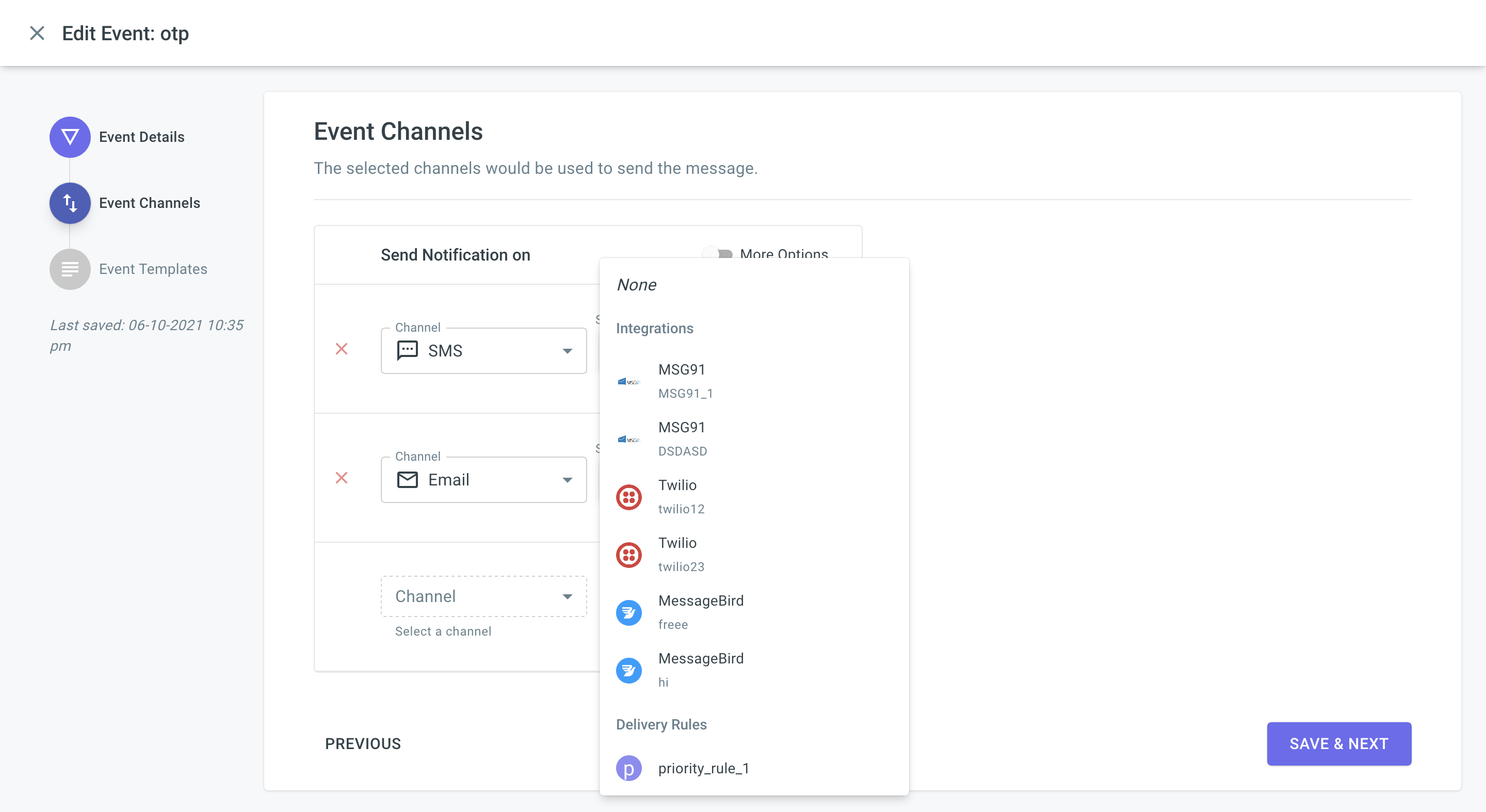
Integration Rules can be re-used across your Events. You can do this by
Edit/Create Event and selecting the rule (in the Send Via list) for a channel.
This allows you to edit your rule anytime directly on the dashboard without
having to write a line of code or update any event.
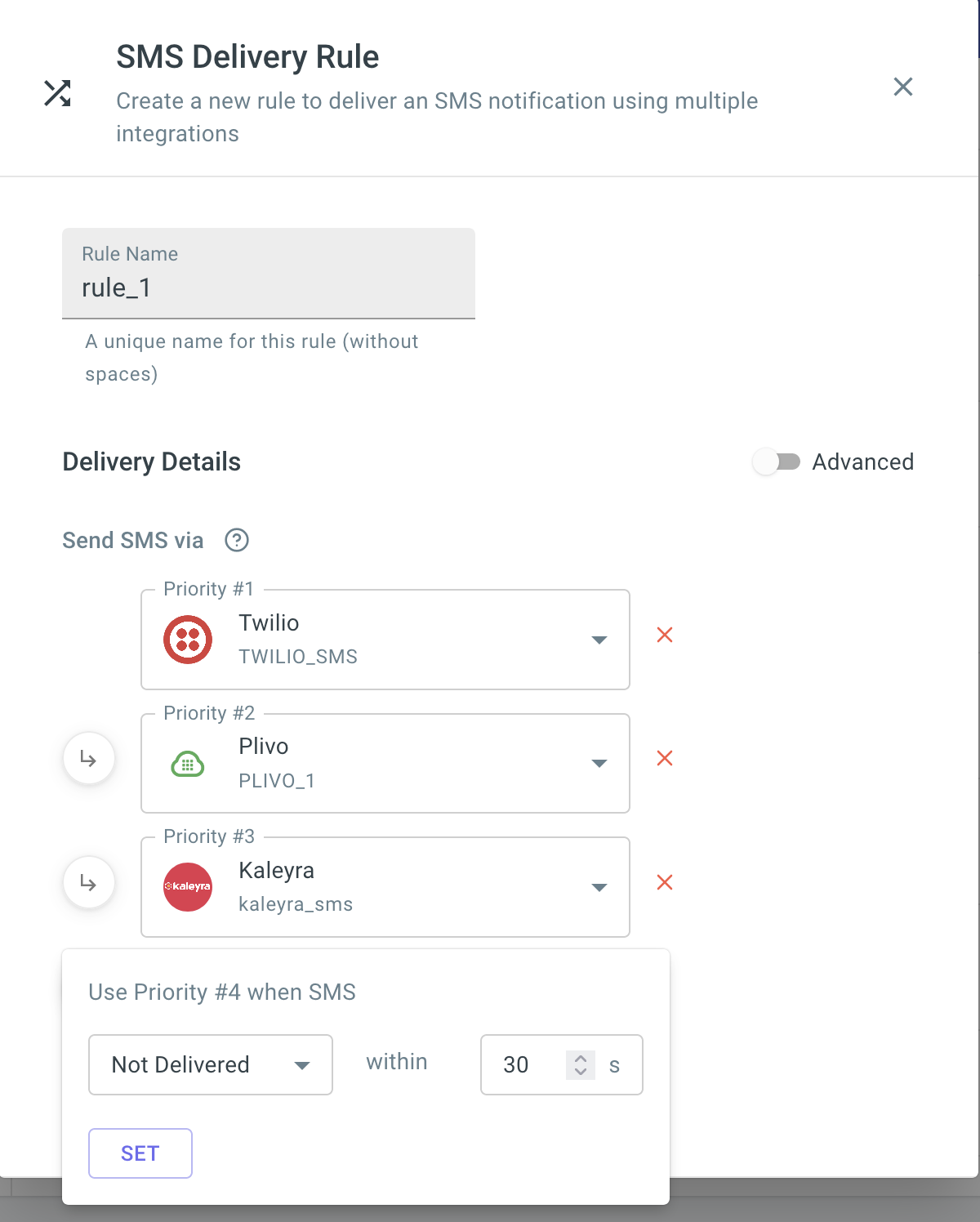
### Rule Example #1: Use multiple integrations with priority
Consider the example, where you want to send SMS with the following
configuration:
| Priority | Integration | Condition |
| ---------- | ----------- | ------------------------------------------------------------- |
| Priority 1 | Twilio | Default use Twilio |
| Priority 2 | Plivo | If Twilio API fails or Twilio fails to deliver SMS within 30s |
| Priority 3 | Kaleyra | If Plivo API fails or Plivo fails to deliver SMS within 20s |
***
You can easily create a rule with the above configuration on the dashboard:
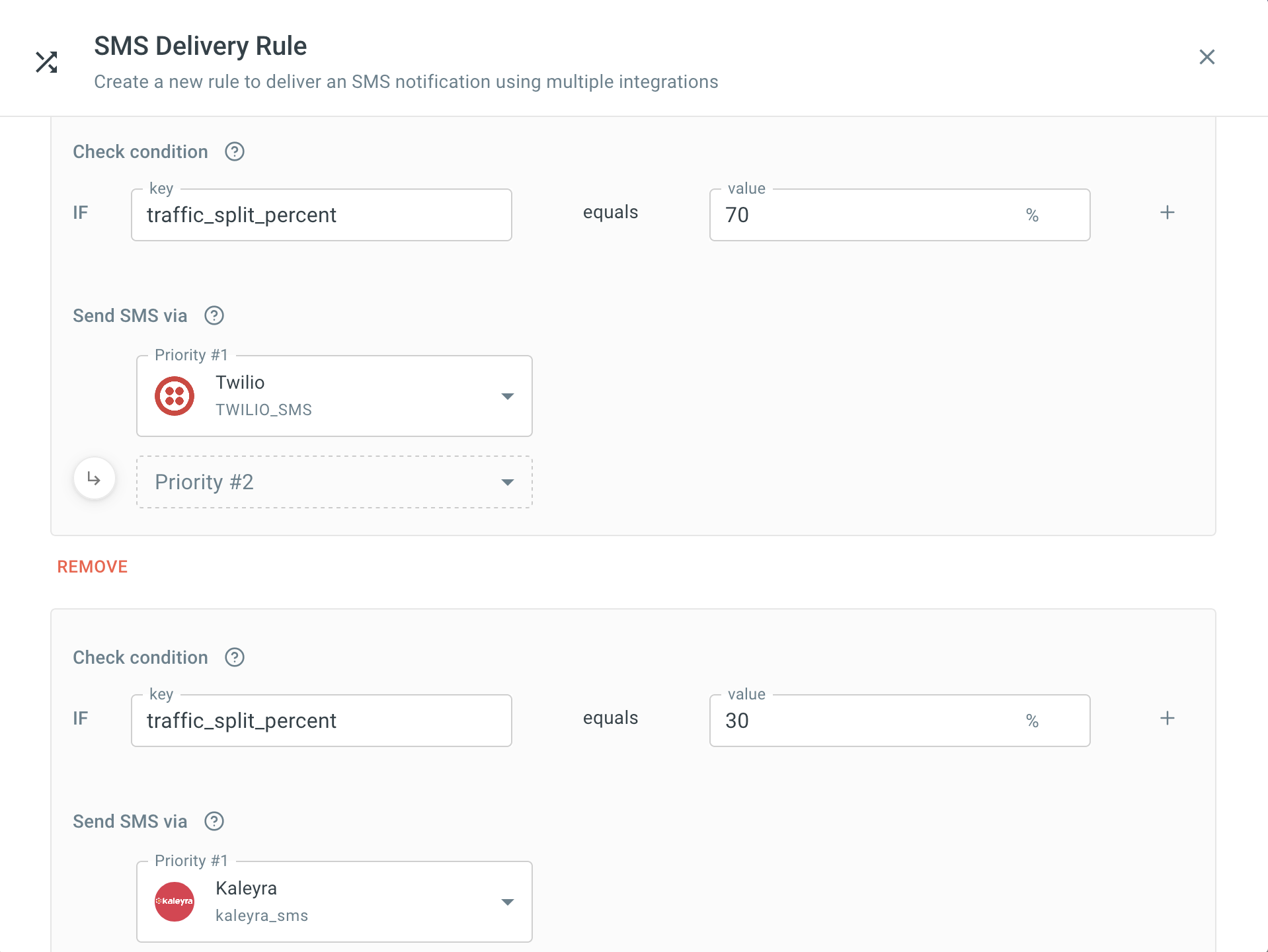
### Rule Example #2: Split traffic between integrations
Consider the example, where you want to split SMS traffic between two
integrations: Send 70% traffic to Twilio, rest 30% on Kaleyra. You can create a
rule to spilt traffic as shown below.
`traffic_split_percent` is a reserved keyword and can directly be selected in
the condition. Your Send Event API remains as is and you need not pass any extra
field to enable this rule.
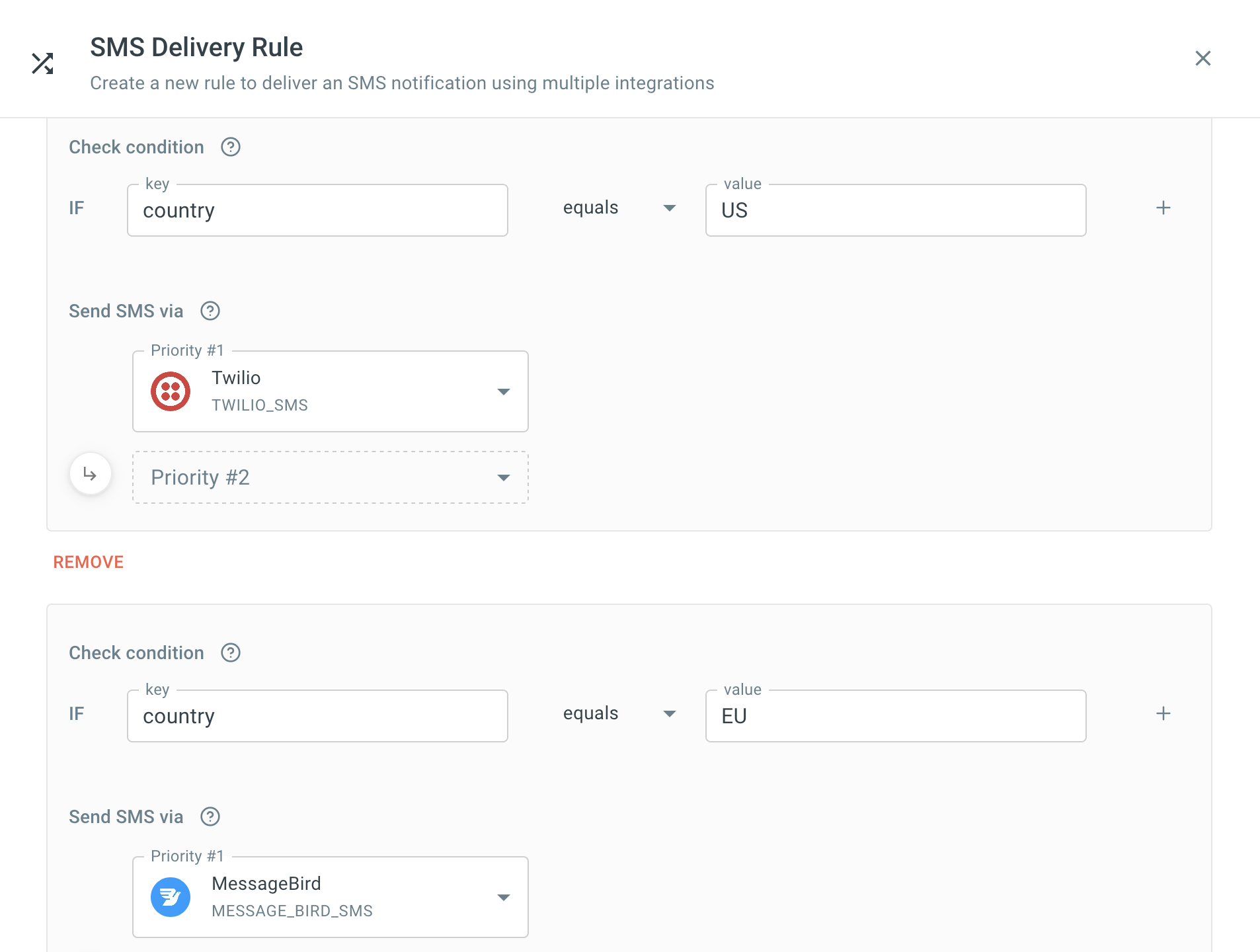
### Rule Example #3: Conditional
You can create conditional rules if you have want to select an integration based
on a set of conditions. Consider the example, where you have users across
geographies and you want to use Twilio for users in US and MessageBird for users
in Europe. You can create a conditional rule as shown below:
You can add multiple IFs in a condition, like IF
`user_id >= 1000 AND user_type = merchant`. You will have to pass the value of
all conditional `key` fields in the data payload of the Send Event API. Raven
will use that value to evaluate the condition and use the correct set of
integrations. This is how the payload will look like 👇. Check our
[Send Event API doc](/api-reference/send-event) for more details.
```json Payload theme={null}
...,
"data": {
...,
"country": "EU"
}
```
If Raven is not able to find `key` field in the data payload of Send Event API,
the condition will fail and no integration will be selected to send the
notification.
## Applying the Rule
Once the Integration Rule is created, you can use it in the Event while
selecting the Integration/Rule for the channel.
You can modify the rule by going to Integrations > Rules anytime without having
to touch the Event or change anything in the API.
 ### Rule Example #2: Split traffic between integrations
Consider the example, where you want to split SMS traffic between two
integrations: Send 70% traffic to Twilio, rest 30% on Kaleyra. You can create a
rule to spilt traffic as shown below.
`traffic_split_percent` is a reserved keyword and can directly be selected in
the condition. Your Send Event API remains as is and you need not pass any extra
field to enable this rule.
### Rule Example #2: Split traffic between integrations
Consider the example, where you want to split SMS traffic between two
integrations: Send 70% traffic to Twilio, rest 30% on Kaleyra. You can create a
rule to spilt traffic as shown below.
`traffic_split_percent` is a reserved keyword and can directly be selected in
the condition. Your Send Event API remains as is and you need not pass any extra
field to enable this rule.
 ### Rule Example #3: Conditional
You can create conditional rules if you have want to select an integration based
on a set of conditions. Consider the example, where you have users across
geographies and you want to use Twilio for users in US and MessageBird for users
in Europe. You can create a conditional rule as shown below:
### Rule Example #3: Conditional
You can create conditional rules if you have want to select an integration based
on a set of conditions. Consider the example, where you have users across
geographies and you want to use Twilio for users in US and MessageBird for users
in Europe. You can create a conditional rule as shown below:
 You can add multiple IFs in a condition, like IF
`user_id >= 1000 AND user_type = merchant`. You will have to pass the value of
all conditional `key` fields in the data payload of the Send Event API. Raven
will use that value to evaluate the condition and use the correct set of
integrations. This is how the payload will look like 👇. Check our
[Send Event API doc](/api-reference/send-event) for more details.
```json Payload theme={null}
...,
"data": {
...,
"country": "EU"
}
```
If Raven is not able to find `key` field in the data payload of Send Event API,
the condition will fail and no integration will be selected to send the
notification.
## Applying the Rule
Once the Integration Rule is created, you can use it in the Event while
selecting the Integration/Rule for the channel.
You can modify the rule by going to Integrations > Rules anytime without having
to touch the Event or change anything in the API.
You can add multiple IFs in a condition, like IF
`user_id >= 1000 AND user_type = merchant`. You will have to pass the value of
all conditional `key` fields in the data payload of the Send Event API. Raven
will use that value to evaluate the condition and use the correct set of
integrations. This is how the payload will look like 👇. Check our
[Send Event API doc](/api-reference/send-event) for more details.
```json Payload theme={null}
...,
"data": {
...,
"country": "EU"
}
```
If Raven is not able to find `key` field in the data payload of Send Event API,
the condition will fail and no integration will be selected to send the
notification.
## Applying the Rule
Once the Integration Rule is created, you can use it in the Event while
selecting the Integration/Rule for the channel.
You can modify the rule by going to Integrations > Rules anytime without having
to touch the Event or change anything in the API.